/logo.webp)
Free 9:16 Vertical Video Safe Zone Template
Stop losing captions and CTAs behind the app's own UI. Download a free vertical video safe zone template — a 1080x1920 overlay showing exactly where TikTok, Reels and Shorts hide their caption bar, action rail and status bar — plus a printable PDF guide with the title-safe (~90%) and action-safe (~93%) margins spelled out in pixels. No email gate, no watermark, free for commercial projects.

- What you get
- 9:16 safe-zone overlay + printable PDF guide
- Formats
- PNG overlay (1080x1920) · print-ready PDF
- Zones marked
- Title-safe ~90%, action-safe ~93%, UI no-go zones
- Price
- Free · no email · no watermark
The UI covers more of the frame than you think
Between the caption bar, the action rail and the status bar, short-form apps can occlude close to a third of a 9:16 frame — and every caption or CTA lost behind that UI is a rewatch or a re-upload. The format keeps growing fast enough to make that waste expensive at scale: Omdia forecasts microdramas will generate about $11 billion in global revenue in 2025, and Sensor Tower's State of Short Drama Apps report put Q1 2025 in-app spending near $700 million, close to 4x the year before. Grab the overlay and guide free below; when a script is ready, generate the episode natively at 9:16.
Download the free 9:16 safe zone template
Two files, one safe-zone system. Click any card to download directly — no email, no signup, free for commercial use.
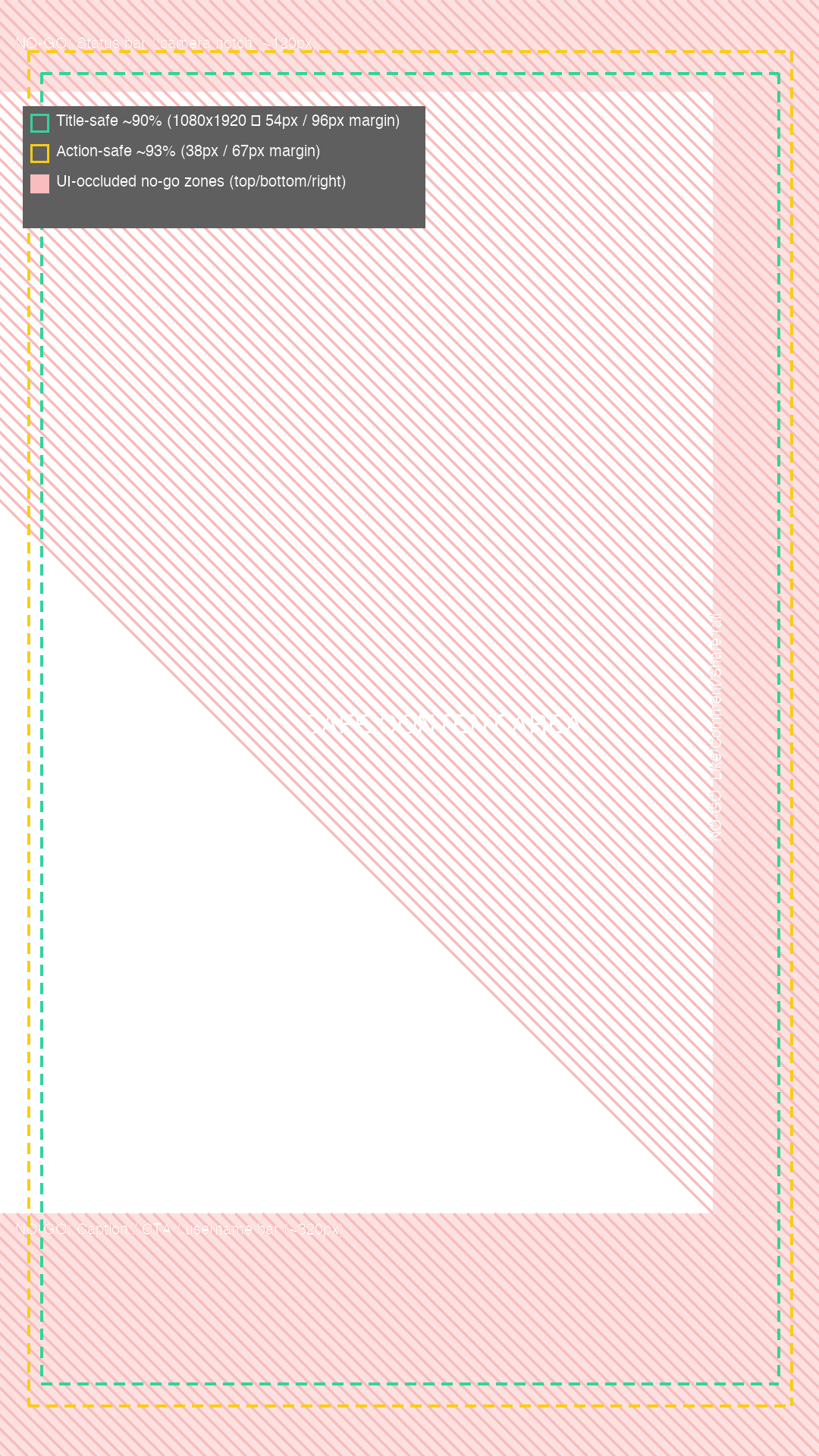
Vertical Video Safe Zone Overlay — PNG
A full-resolution 1080x1920 overlay marking the title-safe (~90%) and action-safe (~93%) margins plus the three UI no-go zones — bottom caption/CTA bar, right action rail, top status bar — with a labeled legend. Import it as a top reference layer, align your edit, then hide it before export.
DownloadSafe Zone Guide — PDF
The same diagram at a glance plus a plain-language explainer of why each zone exists and the exact pixel margins for a 1080x1920 export — title-safe, action-safe and all three no-go zones spelled out in pixels, not just percentages.
DownloadThe PNG imports into any editor or design tool at 1080x1920; the PDF prints clean on US Letter or A4. Every file is free for personal and commercial projects — no attribution required.
Features
See the UI before you edit around it
Every vertical short-form platform draws its own interface on top of your video: a caption/CTA band at the bottom, a like-comment-share rail on the right, a status bar up top. This overlay marks all three zones on a real 1080x1920 canvas, so you place text and faces where the platform can't cover them.
PNG overlay — drop straight into your timeline
A 1080x1920 transparent-style overlay with the no-go zones hatched and the safe margins outlined — import it as a top reference layer in Premiere, CapCut, Figma or Photoshop and hide it before you export.
Printable PDF guide
The same diagram plus a plain-language explainer of why each zone exists and the exact pixel margins for 1080x1920, ready to pin next to your monitor or hand to an editor.
Two safe margins, not one
Title-safe (~90%, for anything that must stay fully legible) and action-safe (~93%, looser, for composition) — the same distinction broadcast TV used, adapted for vertical video.
Built from where the UI actually sits
The margins aren't guesses — they're built from the areas TikTok, Instagram Reels and YouTube Shorts consistently reserve for their own interface, at the resolution almost every short-form export uses: 1080x1920.
Bottom caption/CTA bar — ~320px
Caption text, hashtags, sound title and the follow/CTA button stack here on every major platform. Keep your own subtitles and lower-thirds above it.
Right action rail — ~140px
Like, comment, share, bookmark and the profile avatar run down the right edge. Keep faces and key graphics out of the rightmost ~13% of frame.
Top status bar — ~120px
Clock, network and battery icons — plus some apps' own top gradient — sit here. Headlines placed this high get clipped on real devices.
One overlay, every vertical format
Short-drama episodes, talking-head clips, subtitled trailers and repurposed long-form cutdowns all export at 9:16 — which means the same overlay checks every one of them before you publish, no separate template per platform.
Same overlay for TikTok, Reels and Shorts
The three platforms don't publish identical pixel specs, but their reserved UI areas overlap closely enough that one conservative overlay clears all three.
Check subtitle position, not just the master frame
Burned-in captions move per-shot — hold this overlay up against a few representative frames, not just your first one, especially after reframing or punch-ins.
Catch it before export, not after upload
Fixing a caption that got cropped by the CTA bar after publishing means re-uploading and losing early engagement — checking against the overlay before export is free.
From safe frame to finished episode
Checking safe zones matters most once there's something worth protecting in frame. Paste a script or idea into DramaSo's AI short-drama studio and it generates vertical episodes — dialogue, consistent characters and camera staging — natively at 9:16, so the safe-zone thinking is already built into every export.
Native 9:16 generation
Episodes render vertical from the first frame, not cropped afterward from a horizontal shot — fewer surprises against this overlay.
Captions and CTAs, positioned once
Auto-captioning and export presets in the studio already account for typical platform UI, so you're checking, not guessing.
Plan the season, then export every episode
Use the free episode outline template to structure a season, then generate and export each episode with the same safe framing.
Three steps from raw cut to safe-framed export
Overlay it, align to it, export clean.
- 1
Drop the overlay on your timeline
Import the PNG as the top layer of your 1080x1920 sequence in your editor or design tool of choice.
- 2
Align captions, logo and key action
Keep must-read text inside the title-safe box and any critical action inside the action-safe box; nothing should sit in a hatched no-go zone.
- 3
Hide the overlay and export
Turn the reference layer off or delete it before rendering — it's a guide, not part of the final video — then publish at 1080x1920.
Who this safe zone template is for
One overlay, checked against three very different vertical formats.
Short-drama & vertical series editors
Check burned-in subtitles and episode-end CTAs against the overlay before batch-exporting a season, so nothing gets covered on any platform.
Social video editors & repurposers
Verify reframed 16:9-to-9:16 cutdowns don't push faces or captions into the action rail or caption bar after the crop.
Motion designers & template builders
Build lower-thirds, title cards and CTA templates once, against a fixed safe-zone standard, instead of re-checking margins per project.
Plan the episode, then frame it
The safe zone protects the frame — these plan what goes inside it.
Free Episode Outline Template
Structure a season and every episode's hook, conflict and cliffhanger before you shoot or generate a single frame. PDF + Excel, free.
Free Shooting Schedule Template
Plan the shoot day before it plans you — scene, set, cast, pages and time columns. PDF + Excel, free.
AI Storyboard Generator
Paste your script and generate directed storyboard frames natively at 9:16 — camera moves and lighting staged on a 3D stage.
Open the DramaSo studio
Bring a script and generate one episode free — see safe-framed, native 9:16 output without a single crop.
FAQ'S
Frequently Asked Questions
Ask us anything!
Frame it safe, then generate the episode
Download the safe-zone overlay and PDF guide free and check every export before you publish — and when a script is ready, let DramaSo generate the episode natively at 9:16. Free to start.